
This guide provides a detailed walkthrough of the most common SAC authorization challenges, outlining the error messages, root causes, and the corrective actions required to resolve them.
1. Missing Role Collections
The Symptom: The user logs into SAC successfully, but the home screen is blank. They are missing key navigation menus (like “Stories” or “Models”), or they are unable to create any content.
Error / Indicator:
- UI Indicator: The left-hand navigation pane only shows “Home” and “Profile.”
- Error Message: You are not authorized to perform this action.
The Root Cause: SAC roles (e.g., BI Admin, BI Content Creator, BI Viewer) are distinct from SAP backend roles. They must be mapped and assigned via your Identity Provider (IAS) or directly in the BTP Cockpit, and this step is frequently missed during user onboarding.
The Fix:
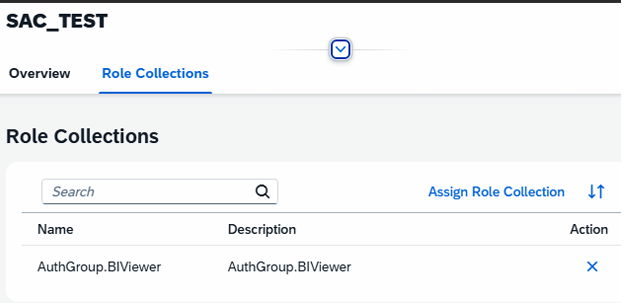
- Navigate to BTP Cockpit > Security > Role Collections.
- Ensure the user is assigned the correct Role Collection mapped to the SAC standard roles (e.g., AuthGroup.BIViewer).
Alternatively, check IPS (Identity Provisioning Service) mapping rules to ensure AD groups are correctly translating to SAC roles.
2. No Access to Specific Stories or Dashboard
The Symptom: The user has the correct BI Viewer role, and they receive a direct link to a dashboard. However, clicking the link results in a hard stop.
Error:
- You do not have access to this story. Contact the owner or system administrator.
- Alternatively, the story tile appears in their workspace, but clicking it does nothing.
The Root Cause: Content-level sharing wasn’t executed. In SAC, having the “Viewer” role doesn’t grant access to all content globally. Access must be granted at the folder or story level.
The Fix:
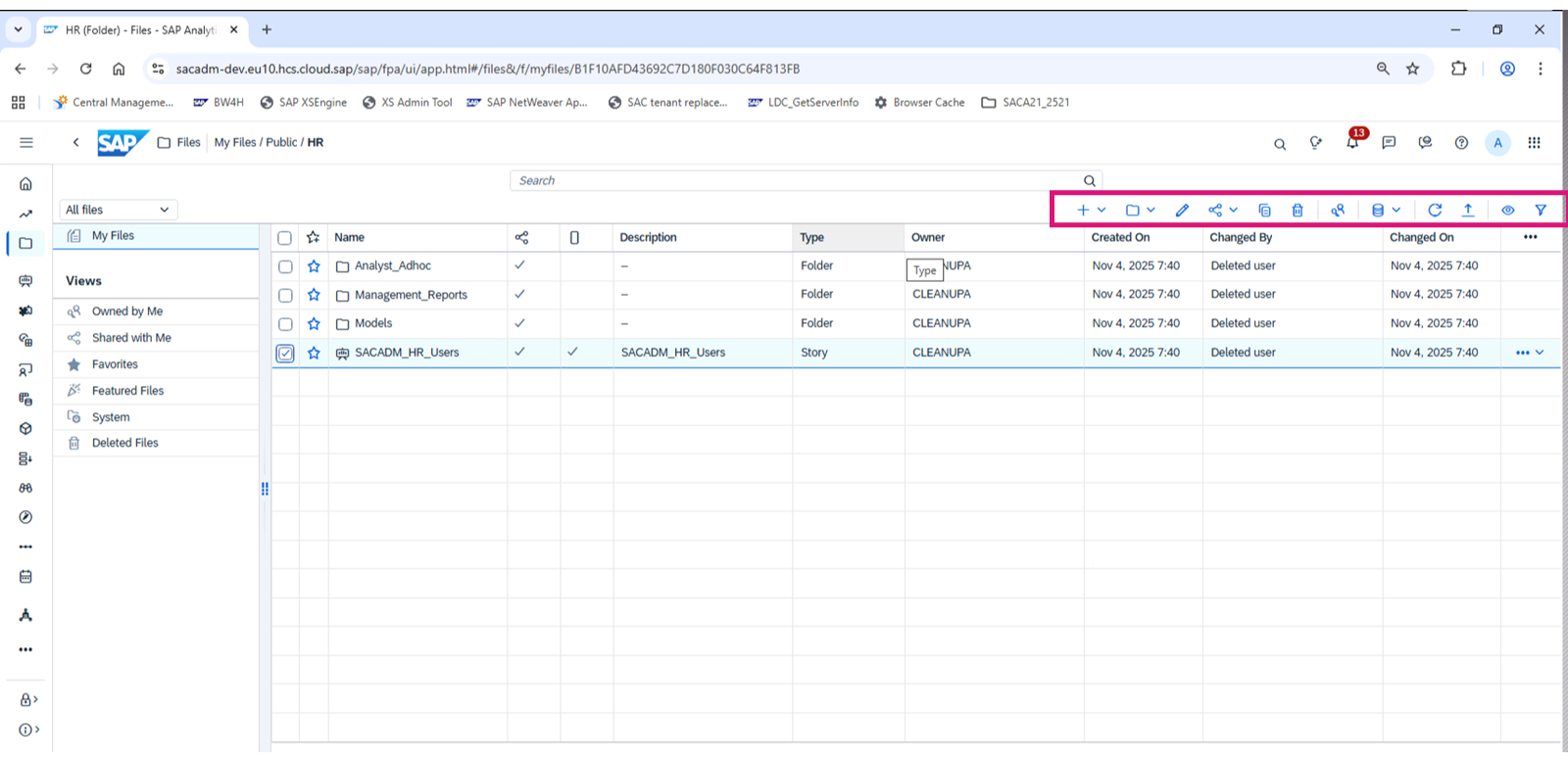
- Go to Files in SAC.
- Locate the specific Story or the Parent Folder.
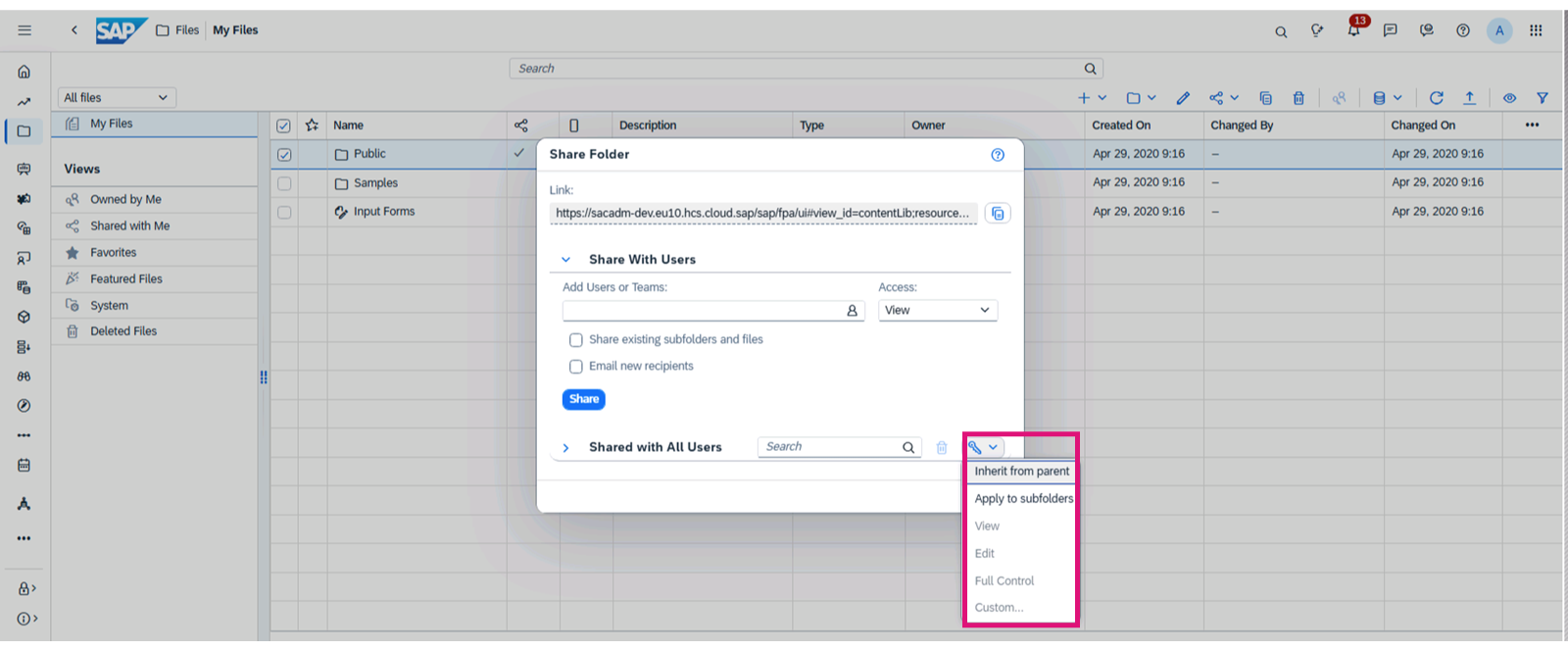
- Click the Share icon and assign read access to the specific user or their SAC Team. Ensure you check “Share with View/Edit” appropriately.
3. Model Authorization & Data Access Control (DAC)
The Symptom: The user can open the dashboard perfectly fine. The layout loads, but the charts and tables are completely blank.
Error:
- No data available for the selected chart.
- You are not authorized to view the data for this model.
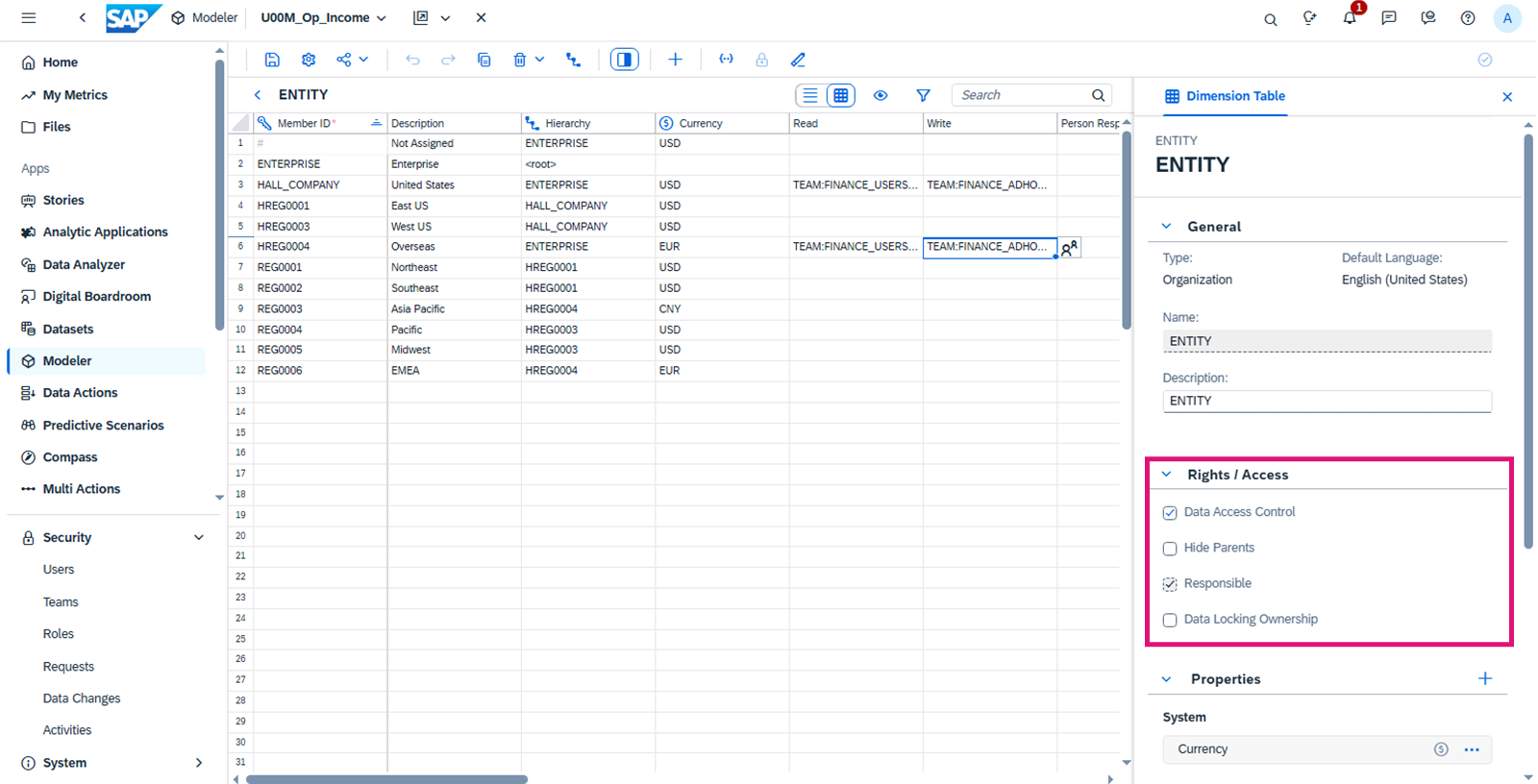
The Root Cause: The user has frontend Story access but lacks underlying Model read access, or Data Access Control (DAC) is restricting them. DAC is used to restrict data by specific dimensions (e.g., Region, Company Code, Plant). If DAC is active on a dimension but the user has no assignment for it, SAC defaults to zero access.
The Fix:
- Navigate to Security > Roles in SAC. Verify the user’s role has read access to the specific Model.
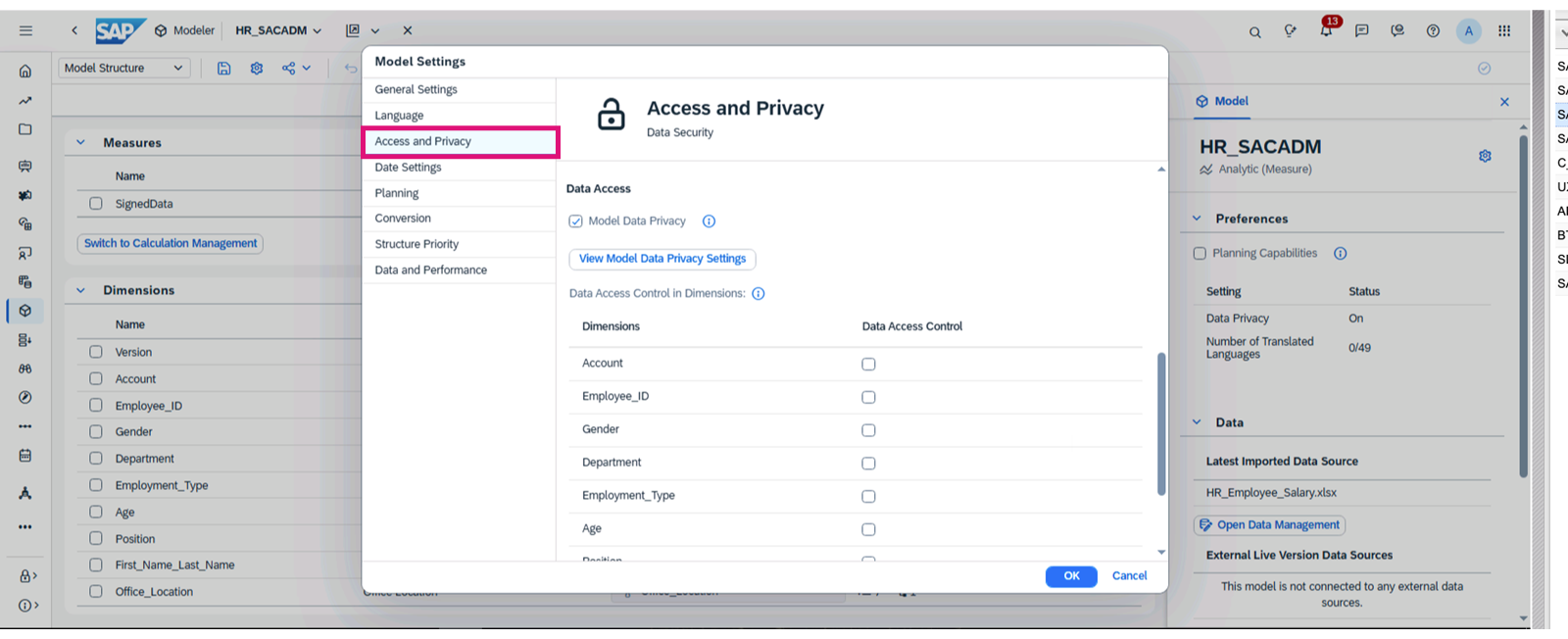
- Open the Model. Check if Data Access Control is toggled on for any dimensions.
- If DAC is enabled, ensure the user or their team is mapped to the allowed dimension values in the Model settings.
4. Backend Authorization Missing (BW / S/4HANA / HANA)
The Symptom: If a user tries to load a story, the widgets throw immediate errors, often referencing database execution.
Error:
- Query execution failed.
- Error [DBMAN]: No authorization for InfoProvider.
- Insufficient authorization.
The Root Cause: The user’s backend SAP account lacks the requisite BW/HANA authorizations to view the query or data.
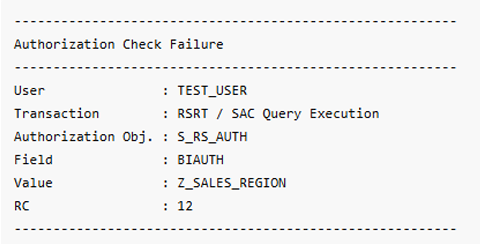
The Fix: Run transaction SU53 in the backend system (BW or S/4HANA) for the affected user. You will almost always find missing access for the following objects:
- S_RS_COMP / S_RS_COMP1: Required to execute the specific BEx query.
- S_RS_AUTH: Ensure the user has the correct Analysis Authorizations assigned.
- S_TABU_NAM: Sometimes required if specific table access is checked.
- For S/4HANA CDS Views: Ensure the correct DCL (Data Control Language) roles are assigned.
5. Missing OData / InA Services (S/4HANA & BW)
The Symptom: This usually happens during system setup or after an upgrade. Live connections refuse to connect, tiles spin endlessly, or filters in the dashboard fail to populate.
Error:
- HTTP 403 Forbidden on /sap/bw/ina.
- The service is not active.
The Root Cause: The Information Access (InA) services, which SAC uses to communicate with the SAP backend, are inactive.
The Fix: Log into the backend system and execute transaction SICF. Ensure the following node paths are active (Right-click -> Activate Service):
- /default_host/sap/bw/ina/GetServerInfo
- /default_host/sap/bw/ina/GetResponse
- /default_host/sap/bw/ina/ValueHelp
6. Identity Provider (IAS/IPS) Sync Issues
The Symptom: A new hire joins the team, or an employee undergoes a name change. They exist in your corporate directory (Active Directory/SuccessFactors) but cannot log into SAC.
Exact Error:
- Authentication failed.
- User could not be verified.
The Root Cause: The user exists in your corporate directory, but the Identity Provisioning Service (IPS) sync job to SAC has failed, or the user fell out of the synchronization filter.
The Fix:
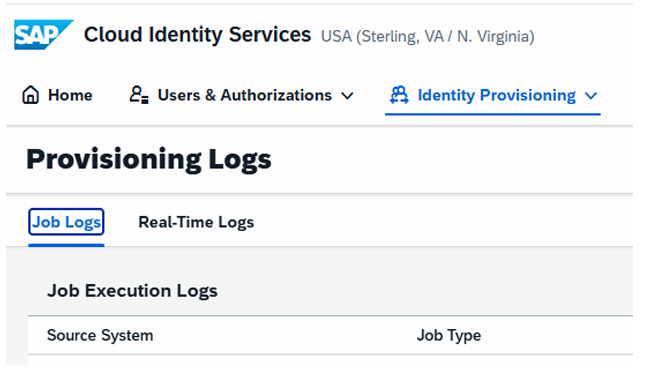
- Log into your IPS Tenant.
- Check the Job Execution Logs for the SAC target system. Look for failed read/write operations.
- Ensure the user’s attributes (specifically Email, UserID, and First/Last name) are populated in the source system without special characters breaking the JSON payload.
Final Thoughts from the Security Desk
Most SAP Analytics Cloud (SAC) issues stem from missing or incomplete authorizations across multiple layers. Users often face problems like blank dashboards, missing tiles, or failed story loads because SAC requires aligned access in four areas: role collections, content sharing, model/data permissions, and backend (BW/S4/HANA) authorizations. Many issues appear to be “SAC problems” but are caused by backend restrictions or incomplete identity sync through IAS/IPS. In short, SAC access is only successful when frontend, backend, and identity layers work together.