
Learn how to create CDS views in HANA Studio Eclipse on SAP S/4HANA systems with this comprehensive step-by-step guide. This tutorial covers CDS view creation, associations, and data preview—essential skills for modern ABAP development. This is the first in a series exploring how to consume CDS views in OData services and Fiori applications.
What Are CDS Views?
Core Data Services (CDS) views are virtual data models used to define and consume semantic data on standard tables or dictionary views. While both SE11 dictionary views and CDS views create database views at the backend, CDS views offer significant advantages including annotations, associations, expressions, aggregation, and grouping capabilities.
At Mindset Consulting, we help organizations leverage modern SAP development techniques like CDS views to build efficient, scalable applications. Our expertise in SAP BTP and ABAP development ensures your team adopts best practices for data modeling and application development.
Two Types of CDS Views
- HANA CDS views – Database-level views optimized for SAP HANA
- ABAP CDS views – Application-level views with ABAP-specific features
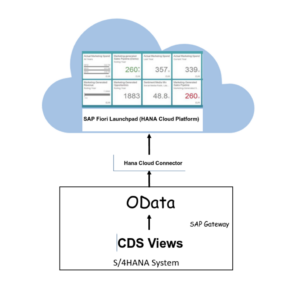
Prerequisites: Set Up HANA Studio Eclipse
Before you can create CDS views using HANA Studio, you need ADT (ABAP Development Tools) in Eclipse. This integrated development environment (IDE) provides powerful tools for creating ABAP applications on SAP S/4HANA systems.
Installation Steps
- Install Eclipse IDE – Download the latest version from eclipse.org
- Install ABAP Development Tools – Add the SAP NetWeaver plugin from SAP’s tools site
- Verify installation – Confirm ABAP perspective is available in Eclipse
💡 Pro Tip: Ensure your Eclipse installation matches your SAP system version for optimal compatibility when working with CDS views.
Step-by-Step: Create CDS Views in HANA Studio
Step 1: Create an ABAP Project
After successfully installing HANA Studio Eclipse, launch the IDE and create a new ABAP project:
- Navigate to File → New → ABAP Project
- Select your SAP system from the connection list (e.g., S/4 HANA 2020)
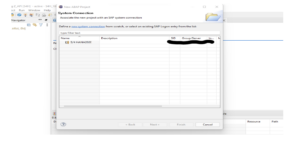
Step 2: Configure Project Connection
Click Next to proceed through the connection wizard.
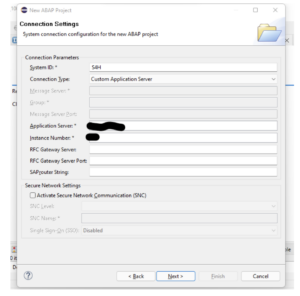
Click Next again to continue.
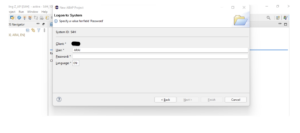
Step 3: Enter SAP Credentials
Enter your SAP system credentials and click Finish.
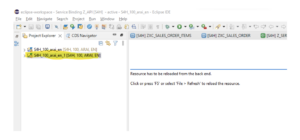
Your ABAP project is now created and appears in the Project Explorer with your user ID.
Step 4: Create Your First CDS View
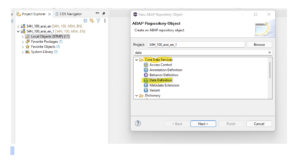
Now you’re ready to create CDS views in HANA Studio Eclipse:
- Right-click on the newly created package ($TMP for local development)
- Select New → Other ABAP Repository Object
- Search for Data Definition
- Click Next
Step 5: Define CDS View Name and Description
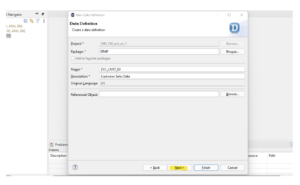
Fill in the Name and Description fields for your CDS view, then click Next.
Step 6: Handle Transport Request
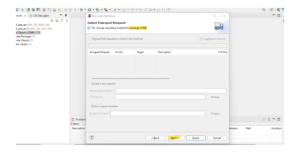
For local development, you don’t need to assign a Transport Request (TR). Click Next to continue.
Important: The system will validate the package—this process may take a few seconds.
Step 7: Select View Template
Choose Define View from the template options and click Finish.
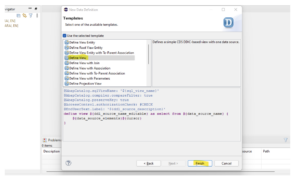
Your new CDS view is now created and opens in the editor!
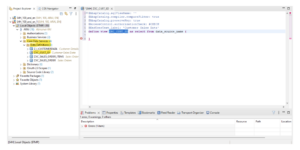
Configuring Your CDS View
Step 8: Modify SQL View Name and Define Data Source
To customize your CDS view in HANA Studio:
- Modify the
sql_view_nameto something meaningful (e.g., ZX_VW_CUST_SD) - Specify your data source table (e.g., KNVV for Customer Master sales data)
Step 9: Select Fields Using Code Assist
Use Eclipse’s code completion feature:
- Place cursor in the coding area
- Press CTRL + SPACEBAR to trigger suggestions
- Select Insert all elements – template
- Choose the fields you need for your CDS view
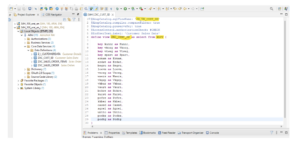
Step 10: Save and Activate
Complete your first CDS view:
- Save: Press
CTRL + S - Activate: Press
CTRL + F3
Creating CDS Views with Associations
Learn to create relationships between CDS views—a powerful feature for complex data modeling in HANA Studio Eclipse.
Step 11: Create a Second CDS View
To demonstrate associations, create another CDS view for Customer Details:
- Right-click on Local Object ($TMP)
- Select Other ABAP Repository Object
- Search for Data Definition
- Click Next
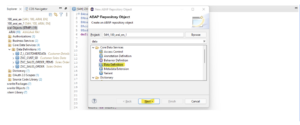
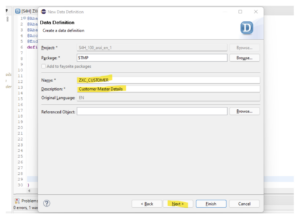
Step 12: Configure View with Association
Provide the CDS view Name and Description, then click Next.
Select Define View with Association and click Finish.
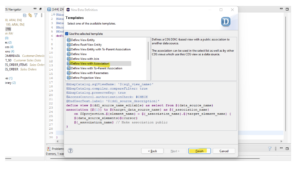
Step 13: Join CDS Views Using Associations
Configure the association between your CDS views:
- Set
sql_view_nameto ZX_VW_CUST - Use table KNA1 as the data source
- Create an association to the previous view (ZX_VW_CUST_SD)
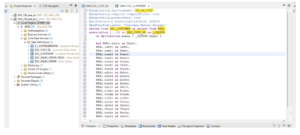
Save (CTRL + S) and activate (CTRL + F3) your associated CDS view.
Preview Your CDS Views Data
Step 14: Use Data Preview Feature
Verify your CDS views in HANA Studio Eclipse are working correctly:
- Right-click on the CDS view (ZXC_CUSTOMER)
- Select Open With → Data Preview
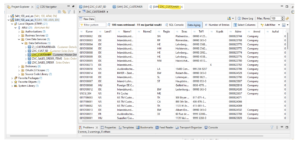
Success! You can now see data from both associated CDS views. These views combine Data Domain Models at the database level with SQL views at the application level, providing a powerful abstraction layer for your SAP applications.
Key Takeaways for CDS Views Development
Congratulations on learning to create CDS views in HANA Studio Eclipse! Here are the essential points to remember:
- CDS views supersede SE11 dictionary views with enhanced features
- Associations enable complex relationships between data models
- Code completion (CTRL + SPACEBAR) speeds up development
- Data Preview helps validate views before integration
- Proper activation (CTRL + F3) is required for views to function
Next Steps: Using CDS Views in Fiori Applications
Now that you’ve mastered creating CDS views, explore how to leverage them in modern SAP applications:
- Consume CDS views in OData services for RESTful APIs
- Integrate with Fiori applications for responsive UIs
- Implement authorization controls at the CDS view level
- Add annotations for enhanced UI generation
- Optimize performance with proper indexing strategies
Stay tuned for the next blog in this series where we’ll cover consuming CDS views in OData services and Fiori apps!
Expert SAP Development Services from Mindset
Understanding CDS views is fundamental to modern SAP development. At Mindset Consulting, we help organizations build efficient, scalable SAP applications using the latest development techniques.
Our SAP technical experts can help you:
- Design optimal CDS view architectures for complex data models
- Develop Fiori applications leveraging CDS views and OData services
- Implement ABAP RAP (RESTful Application Programming) frameworks
- Migrate from legacy development to modern SAP practices
- Train development teams on CDS views and ABAP best practices
Ready to modernize your SAP development? Contact Mindset Consulting to discuss how we can accelerate your SAP projects with expert guidance.
Want more SAP development tutorials? Visit our resources page for comprehensive guides on ABAP, Fiori, CDS views, and SAP BTP development. Happy learning!
